Setting up UndoPortal on BigCommerce takes a couple of minutes. You'll create a hosted withdrawal form, copy a snippet, and paste it into a new page — no theme code and no developer needed.
1. Create an account
Go to admin.undoportal.com and create your free account.
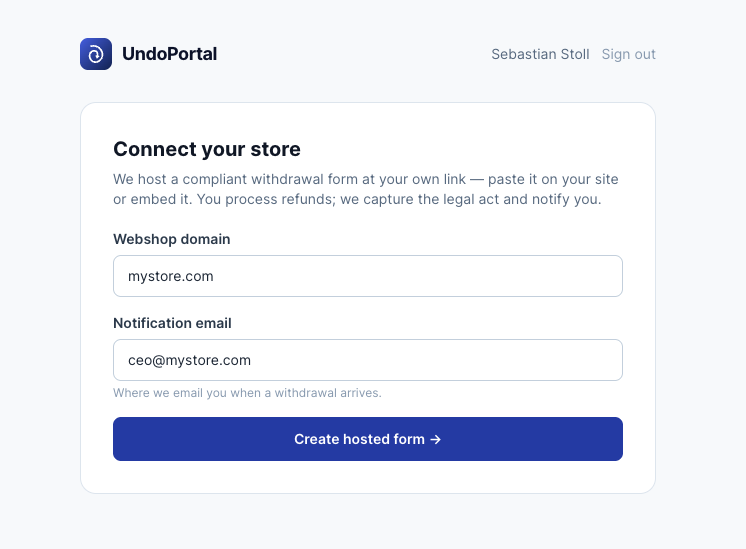
2. Fill in your domain and email
Once you're logged in, fill in two fields:
- Store domain — the address of your store, e.g.
mystore.com. - Notification email — where you want to be notified every time a customer
submits a withdrawal, e.g.
owner@mystore.com.
Click the blue button to continue.
3. Select "BigCommerce"
You'll be asked which platform you're using. Select BigCommerce.
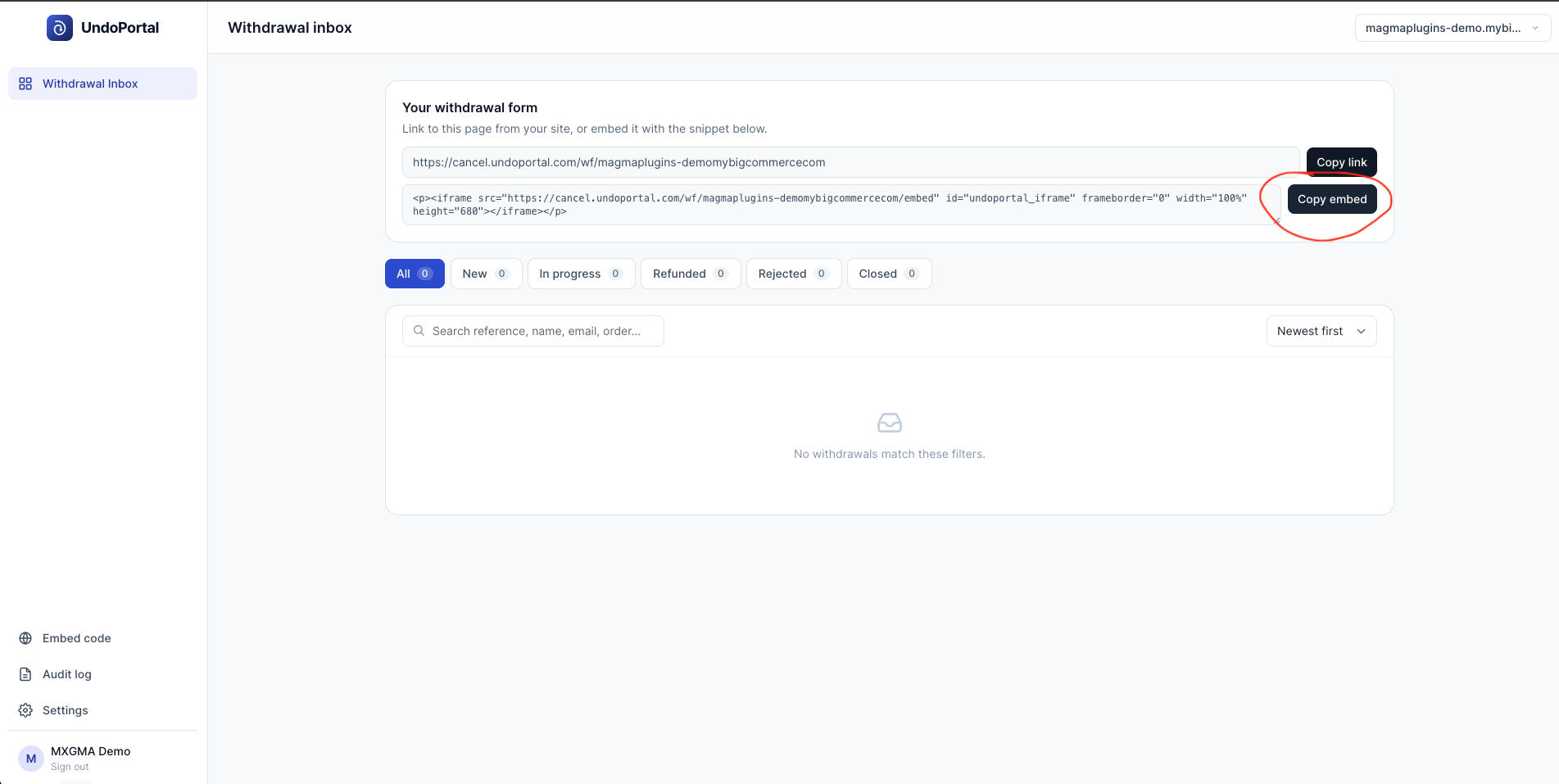
4. Copy your embed code
Once your store has been created you'll see your inbox. Click Copy embed to copy the iframe snippet.
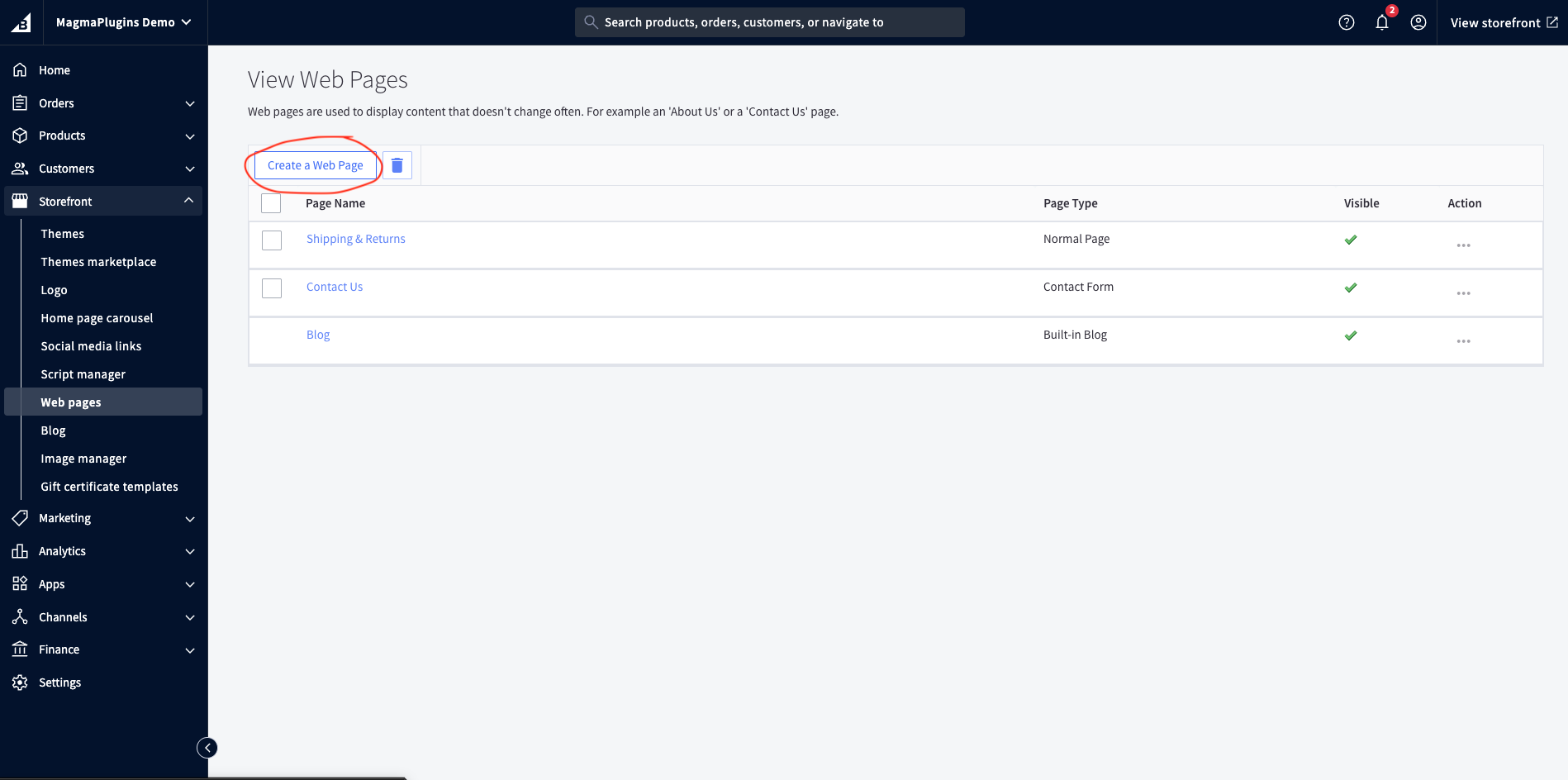
5. Create a new page in BigCommerce
Open BigCommerce and go to Storefront → Web pages → Create a Web Page.
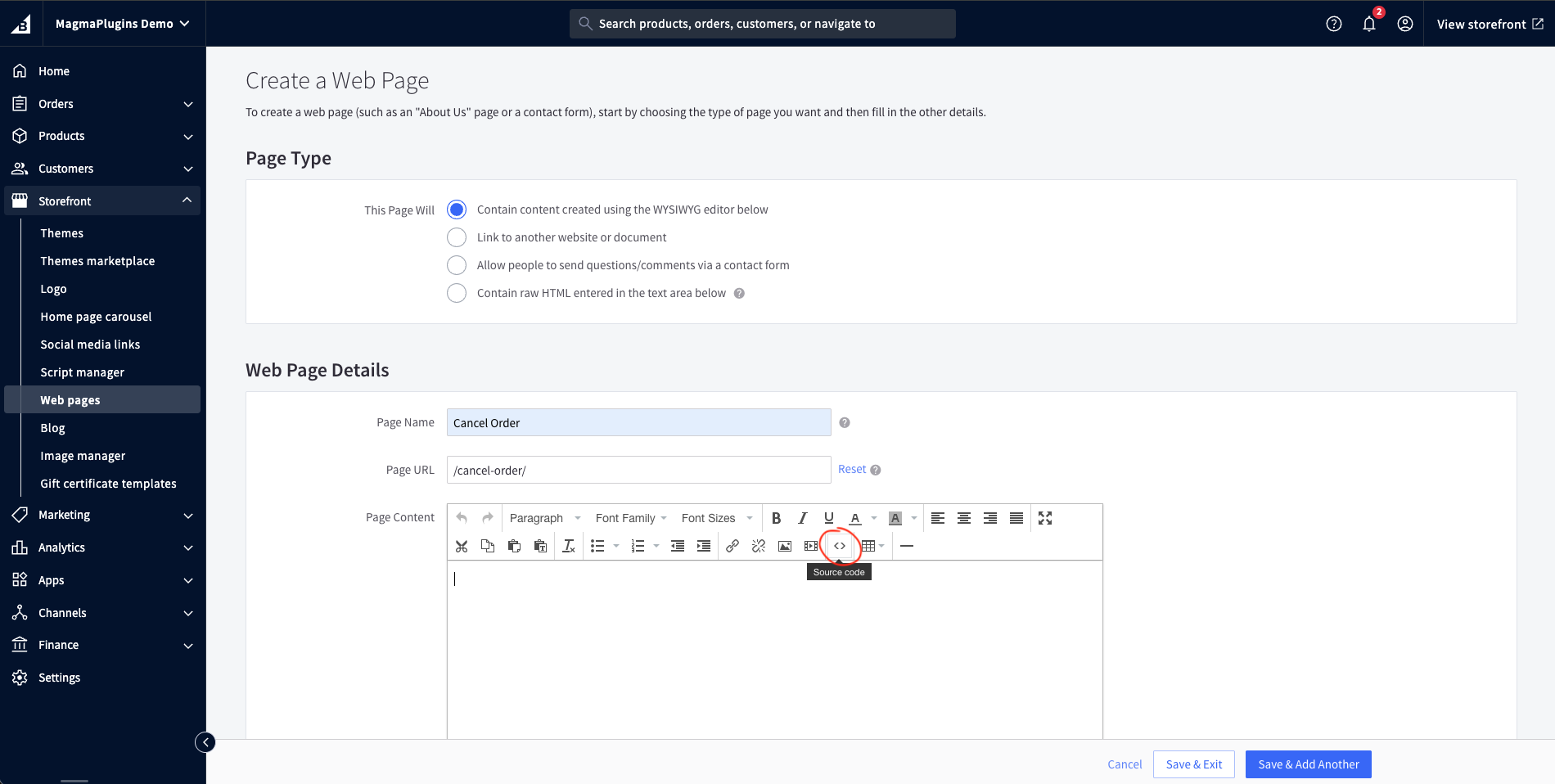
6. Name the page and open "Source code"
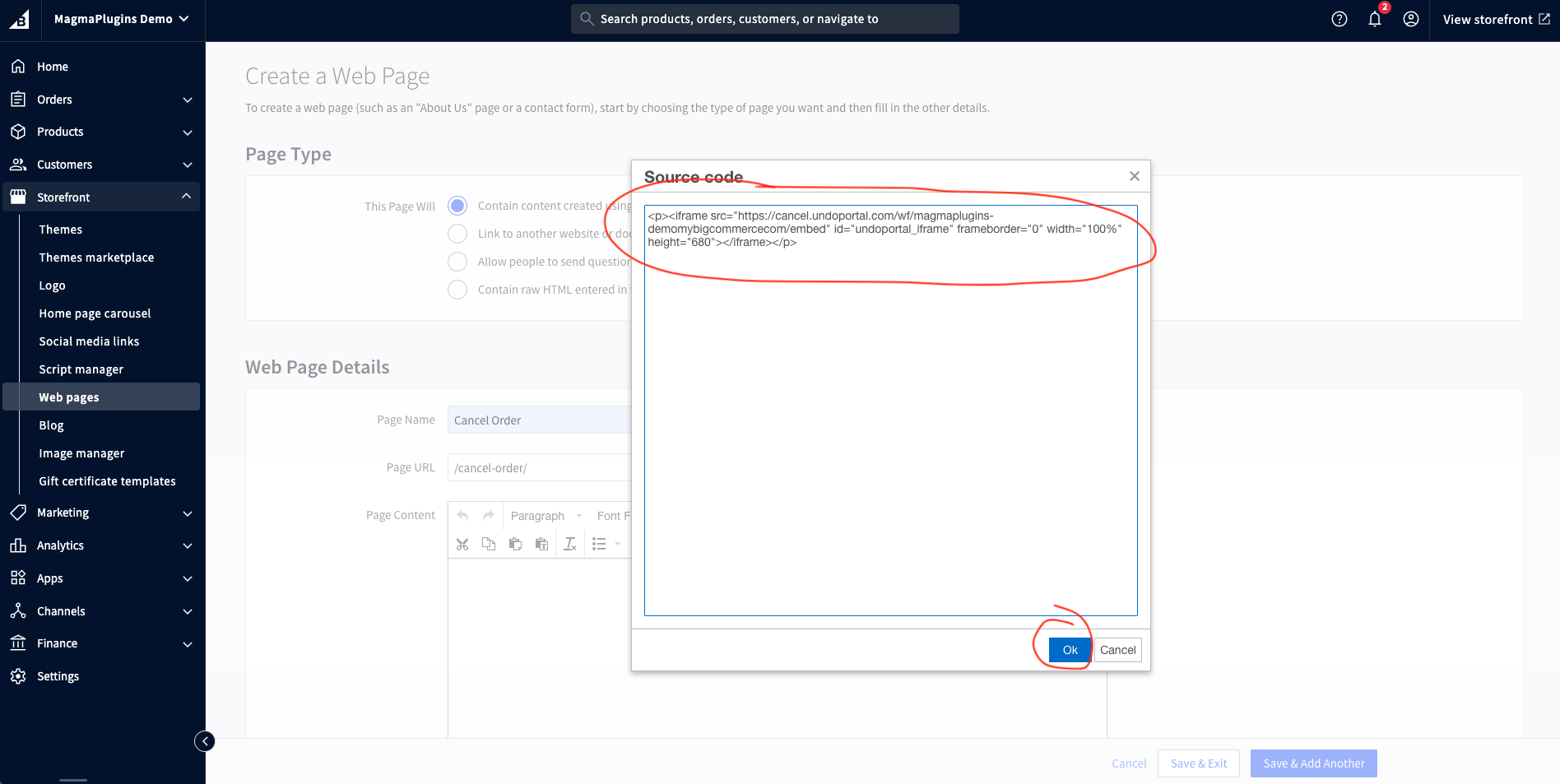
Give the page a name (for example "Withdraw from your order") and click the Source code button in the editor.
7. Paste the embed code
Paste the snippet you copied in step 4 into the HTML field.
8. Save and exit
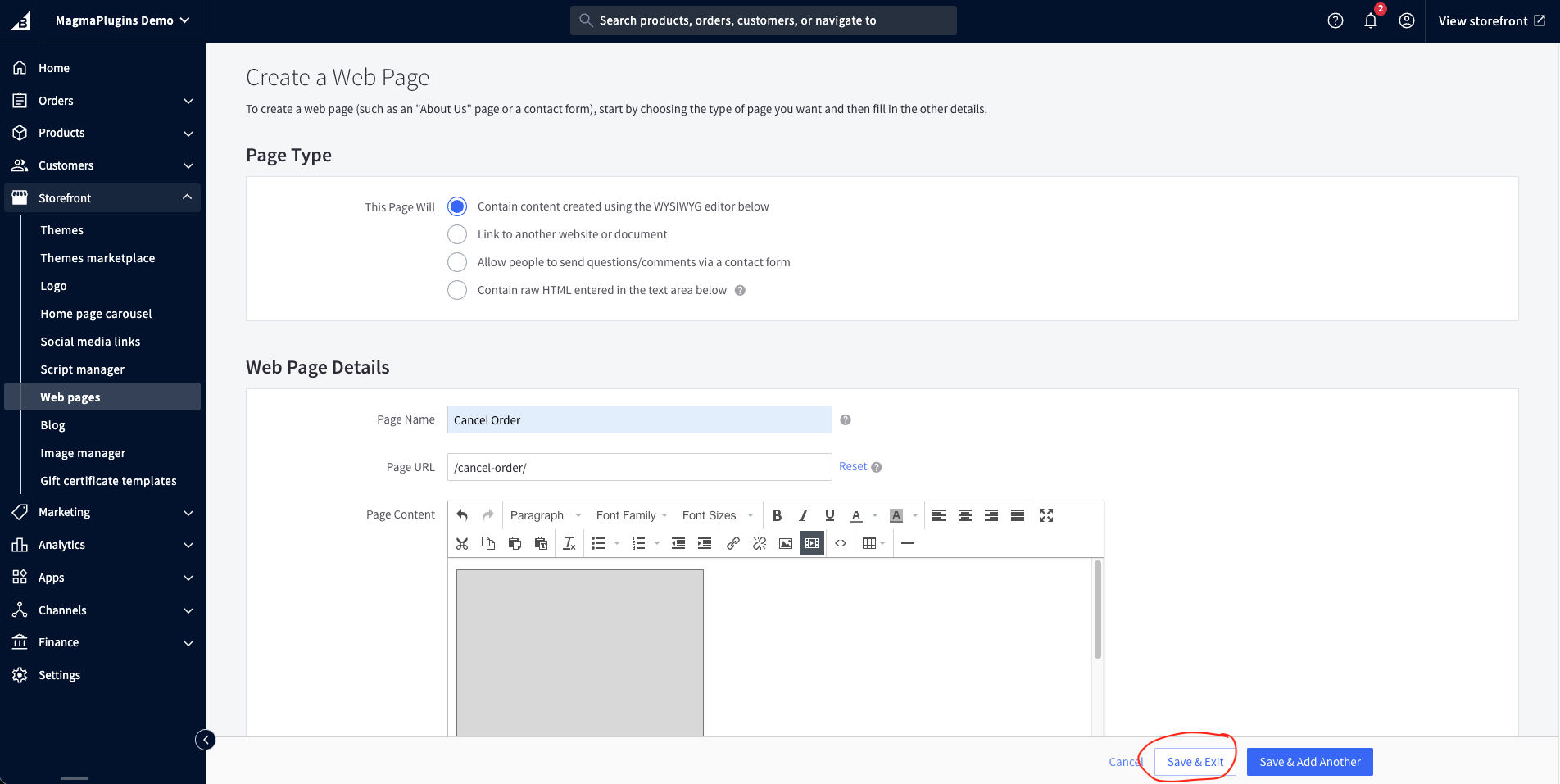
Click Save and Exit. Your withdrawal form is now live and customers can use it right away.
9. Make the form easy to find
Add a link to the new page somewhere customers can easily reach it — the footer, the main menu, or your returns page. The directive requires the withdrawal function to be easily accessible.
Done
That's it — in a few minutes your BigCommerce store has a compliant withdrawal form.